Your case, in your hands.
Use a prepared Trinetra case, explore it in 3D and continue planning on your phone or tablet.
Open the app
1. Install on your home screen
iPhone / iPad: open this app in Safari. Choose Share, then Add to Home Screen. Open the new Trinetra icon.
Android: open in Chrome. Choose Install on this device in Trinetra, or use Chrome's menu → Install app / Add to Home screen.
Install before activating when possible. Use the same installed app and browser profile for your cases and licence. This is an installable web app; no App Store or Play Store download is needed.
2. Use your existing PC licence
- Activate Trinetra on your PC first.
- On your phone or tablet, tap Activate and keep Use my existing PC licence selected.
- Enter the same activation code and tap Activate.
One phone or tablet can accompany that licence. Your PC stays activated, and linking the companion does not use another PC seat. It receives the same permitted specialties and role: a Review licence remains view-only.
Mobile access renews automatically while online and permits up to 30 days offline, ending sooner if the parent licence expires. The PC does not have to stay awake. You do not enter the code daily or every month. You can also choose Licence → Installation ID and licence details → Renew mobile companion now before travelling.
To change phones, ask your administrator to release the old link under Licence Manager → Mobile companions. Released or revoked access stops at the next successful online check; an existing offline grant lasts until its signed expiry. Clearing site data removes your browser identity and requires administrator help to relink.
This uses the existing Google licence service. Offline PC-bound key files need administrator-enabled online access; they cannot simply be copied to a phone. Standalone browser activation remains available for a separate browser licence and follows its original device-seat allowance. Activation sends licence and installation identifiers only; case files are never sent.
3. Open a case
- Save the case file to Files or Downloads on your device.
- Tap Open a case and choose a .tri-project, .tri-review or supported .trinetra package.
- Choose Cardiac, Orthopaedic or Thoracic and give the case a local name.
- Open Studio. When asked about the scan, keep 3D only for a faster start or load the scan alongside it.
A compatibility TQLC v2 .trinetra package must contain its original Studio project. The source project is checked using SHA-256. The complete original package is retained separately, including attachments; those attachments are not all displayed or loaded into memory. Display-only exports, unsupported codecs, ZIP64 packages and recipient-bound encrypted deliveries require the appropriate desktop workflow.
4. Explore and plan
- Navigate: drag with one finger to rotate. Use two fingers to pan or pinch to zoom.
- Tools: choose a group, then open the section you need.
- Quick tools: start a distance, mark the surface or create a surface path.
- Masks: choose structures, show/hide them, change colour or opacity, and use groups. Views and Notes are in the same panel.
- Point tools: tap the anatomy to place points. Tap Navigate to move the camera again.
- Undo: reverse the latest supported edit. Redo is under More.
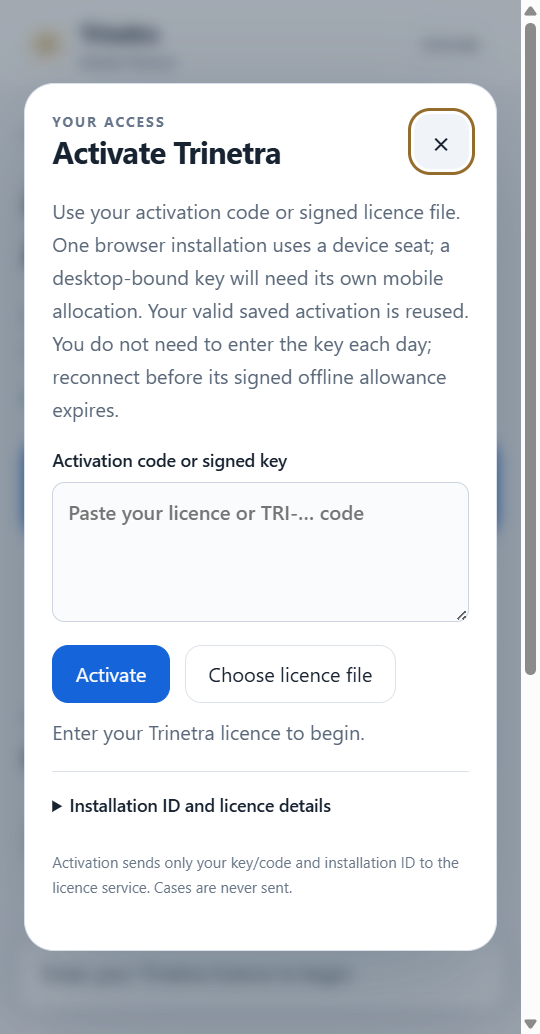 Open a local case.
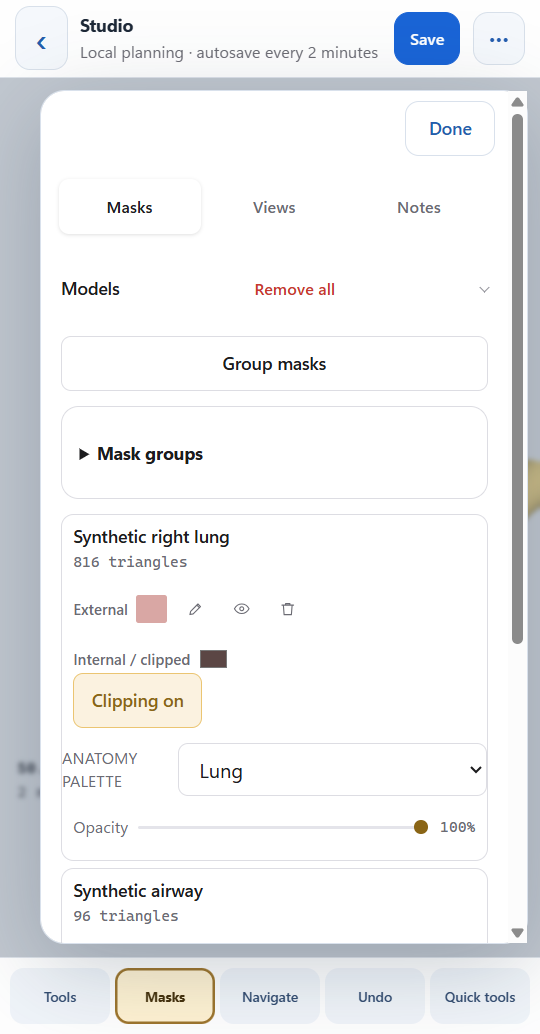 Control each structure.
5. Save and move back to desktop
- Tap Save and wait for confirmation. The project and Casebook entry are saved together on this device.
- Pending changes autosave every two minutes while Studio is running. Mobile operating systems may suspend or close background apps, so save before switching away.
- Use More → Export project backup or Casebook → Export to download a .tri-project file.
- Open that file in desktop Studio to continue. Your original imported package is available separately through Original file.
Saving edits does not overwrite the original import. A failed storage transaction leaves the previous saved case intact. If storage is full, keep the current case open and export a backup before clearing space. Large models can exceed a phone's working memory even within the app's limits.
Offline use and app updates
After a successful first load, the app shell is cached for offline use. Your local cases can reopen within the signed licence's offline allowance. An update appears as an Update app notice; save pending edits before applying it.
Cases are stored in this device's browser storage, not uploaded to the hosting service. This is not the native Quest encrypted library or a managed hospital record store. Use a protected device and your institution's approved data-handling process. Keep exported backups: clearing browser data or operating-system storage eviction can remove local cases.
Moving from the earlier mobile address
This is a separate deployment. Export backups from the earlier site's Casebook, then import them here. Different site addresses have separate browser storage and installation IDs; the app cannot silently read the old site's cases or activation.
What still needs a desktop?
Slicer segmentation and installed AI extensions, CFD/Flow solver execution, USB Quest installation and the local Requests receiver use desktop Trinetra. Browser PDF export uses your device's print/share workflow.
The app has been checked with isolated Chromium touch emulation at phone and tablet sizes, including offline page reopening. Physical Safari/iPhone/iPad and Android testing, customer-key seat activation and clinical validation remain outstanding. Experimental geometry and simulation tools are for research and education.
Full Trinetra tutorials · Third-party notices